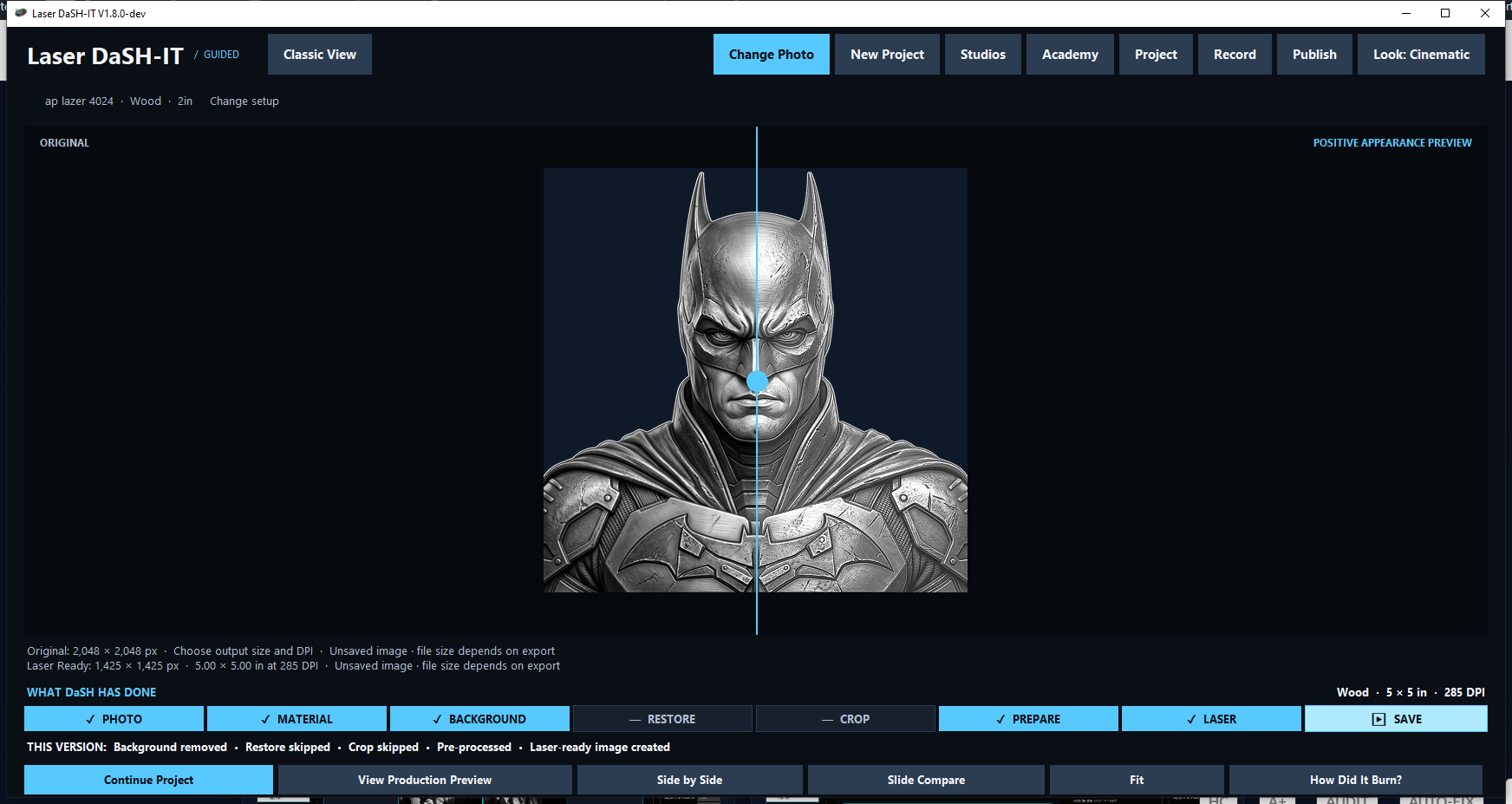
Real app capture: Guided Mode & split comparison
Bring your photo, your material and your next big idea. Laser DaSH-IT guides you through image preparation, material-aware processing, calibration and production output in one Windows workspace.
Build on proven donor references, refine with real burn feedback and keep the settings that worked. Explore the v1.8 additions below, including Print DaSH-IT, expanded multi-panel planning and improved Coin Relief Studio.
v1.8 is a development preview. The current installer and free trial provide the published release. All four new screenshots on this page were captured directly from the running v1.8 development app on October 14, 2026.
Open the photo, read the guidance and answer the questions. Guided Mode puts the work in order so you can focus on the image instead of hunting for the right tool. Prepare the source, refine its tones, choose the material treatment and inspect the final laser-ready output. The source photo, restored result, prepared master and final processed image have different jobs in that workflow.
Remove the background when needed, restore, crop and set physical dimensions.
Choose the material, DPI, tones, polarity and dither or halftone approach.
Use donor references, proof variations and physical tests to refine your starting point.
Review the output and use supported image or LightBurn-ready exports.
Current workflow capabilities and upcoming v1.8 additions are identified below. Screenshots labeled v1.8 show the development build, whose interface may change before release.
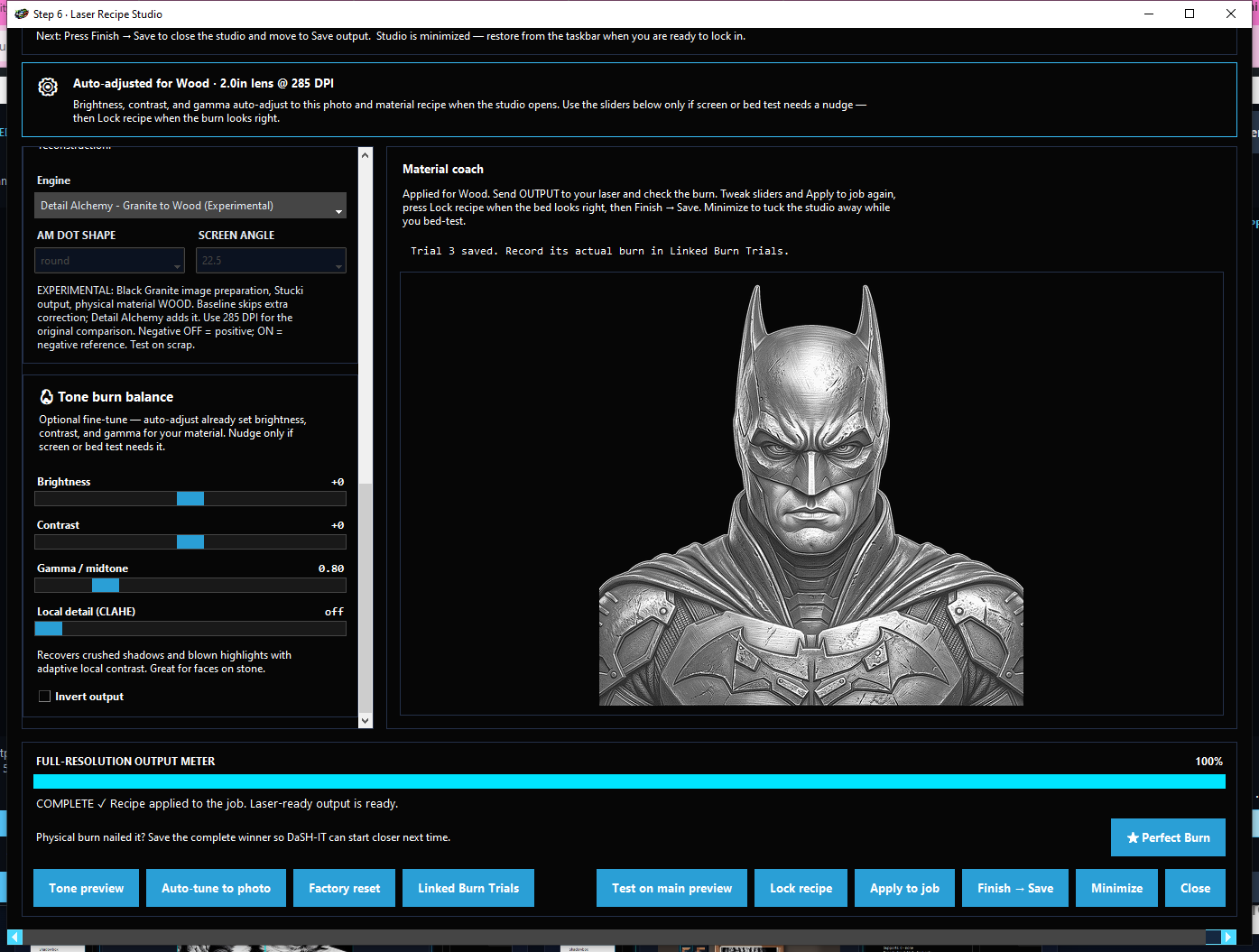
Work through the photo in order, then refine the material interpretation in Laser Recipe Studio. Brightness, contrast, gamma and processing choices let you adjust the result while the preview keeps the job visible.
Wood and black granite need different tonal and polarity decisions. A prepared source image provides a neutral starting point before the material treatment and final output are applied.
The screenshot is from v1.8 development and shows experimental Detail Alchemy selected. That mode remains under physical testing and is not presented as a proven engraving result.
A useful recommendation starts with the job and the evidence behind it. The Settings Suggester uses job context, saved history and recorded feedback to guide starting settings for speed, power, DPI or line interval.
Da Calibration Lab lets you compare image-specific proof variations. Physical calibration tests establish how the material responds on your own machine. Machine, lens, material and processing choices all matter.
Recommendations help you choose a starting point. A small physical test confirms the direction for your actual setup.
A donor is a reference image associated with a successful engraving on a particular material. Use the available library or your own successful references to guide the tonal preparation of a new photo. The reference gives you a proven direction; your image and material still need to be evaluated.
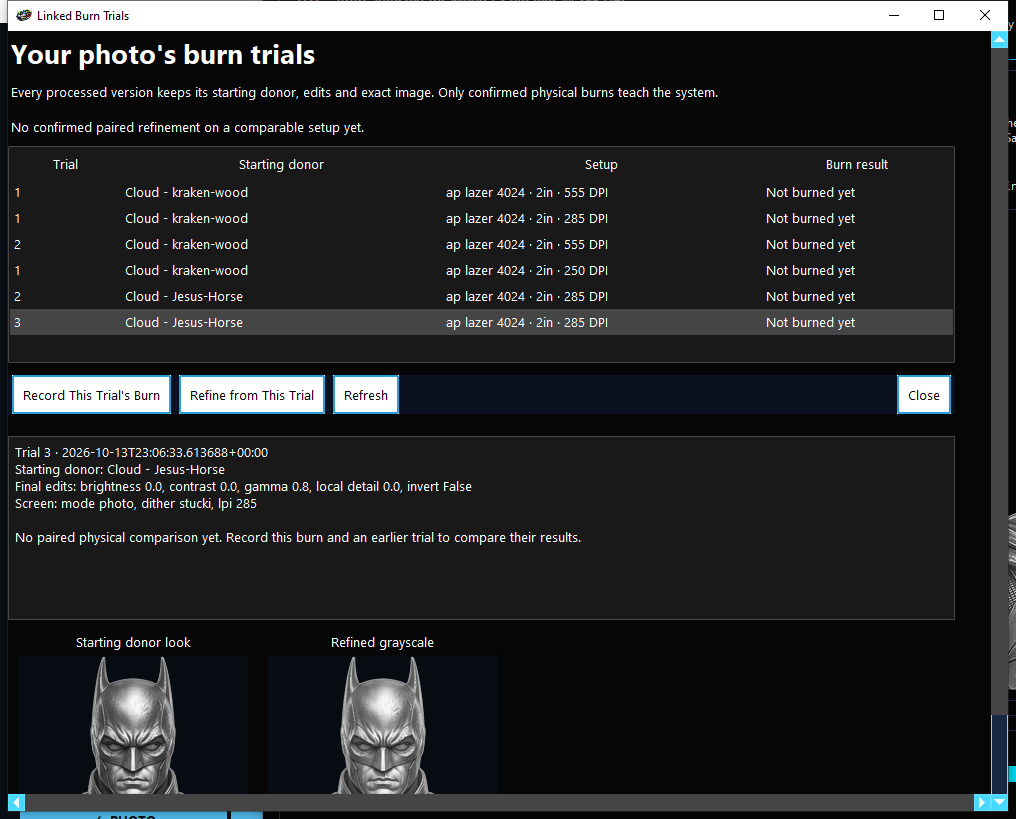
In the current v1.8 development build, Linked Burn Trials keeps the starting donor, edits, setup and exact image with each version. Record the physical burn, then refine from that trial so your next attempt stays connected to what you actually tested.
Only confirmed physical burns teach the system. The trials visible in this screenshot are marked not burned yet; they are not being presented as validated successes.
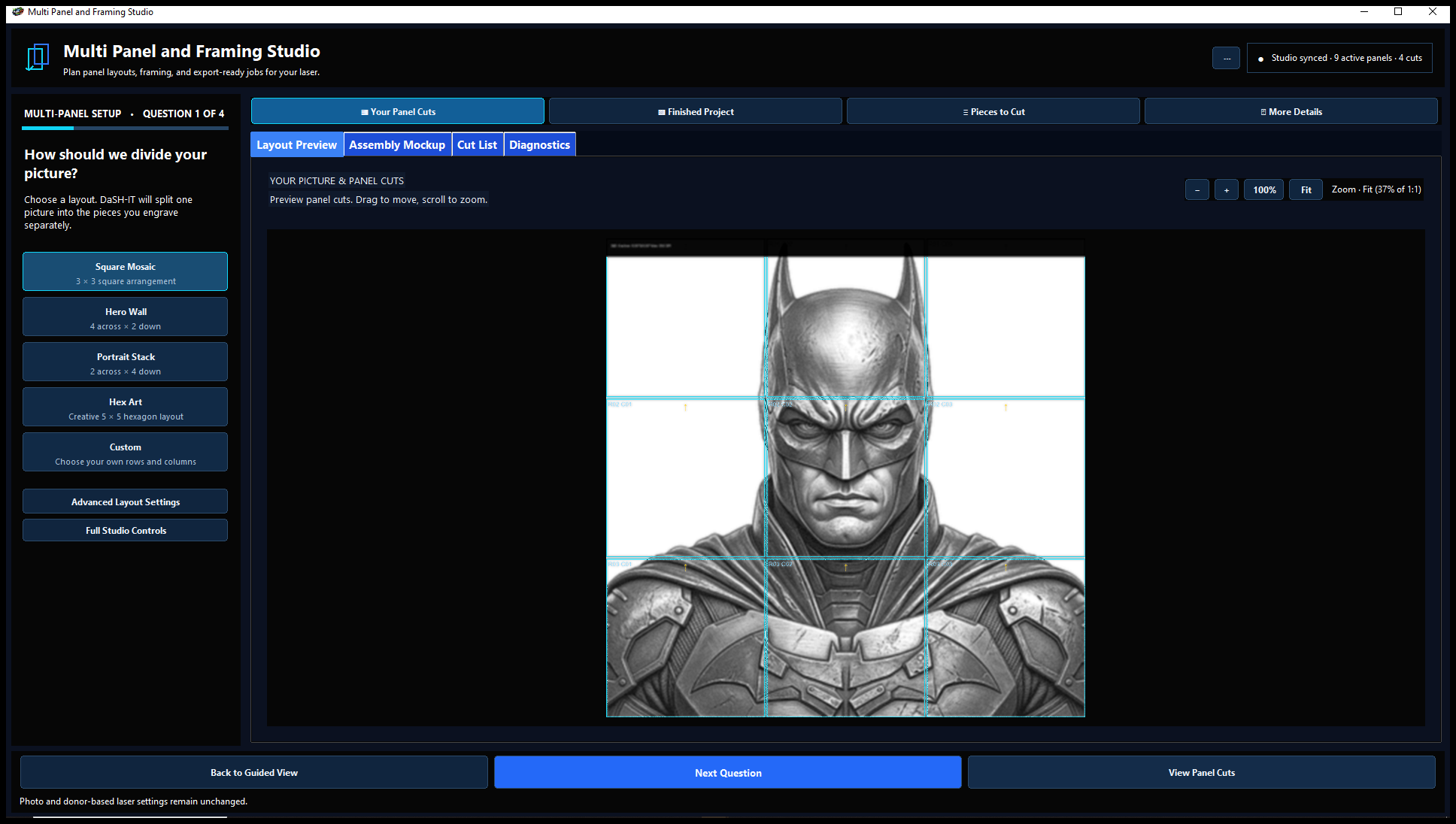
Turn one image into a coordinated larger piece. The v1.8 guided setup asks about the layout and sheet or media size, shows the photo divided across the panels and displays the complete assembled dimensions.
Plan bleed, overlap and gaps. Add registration and trim marks, and include visual production-proof bars for printed output. See how the pieces fit before making the first panel.
Proof bars are visual checks, not instrument-measured ICC calibration. Registration marks alone do not provide automatic camera-guided laser contour cutting.
Use conversion and hybrid raster/vector workflows when a design benefits from image detail alongside vector elements. Keep artwork preparation and output review connected to the job.
Check the resulting files in the software used for your machine before production.
Create artwork from a prompt or reference and bring the result into the preparation workflow. Shape Studio supports custom-shape artwork projects where the outline is part of the design.
Review generated details before using the artwork. Online AI tools require internet access and the applicable allowance or credits; a software license does not mean unlimited cloud processing.
You just have to check this out.
The image burned too dark? Record it, make your adjustment and test again. When the material looks right, keep that result and its settings.
Donor references guide tonal preparation. Saved history captures experience. Physical calibration supplies evidence for a particular setup. Those are different kinds of information, and together they help you make a more informed next decision.
A screen preview cannot tell the software how the material engraved. The learning depends on the physical results you record.
The following additions are being prepared in v1.8 development. The current download remains the published release; access to new features depends on publication and update eligibility.
Put a real project through the workflow. See how guided preparation, proven references and practical calibration fit the way you work. Try up to 10 distinct source projects over 7 days, starting with your first project. Reworking the same original image does not use another project slot. No card required. Already tried it? Enter your purchased serial in the same app to continue with the files on your computer. A new license includes 365 days of updates.